No App on Phone · Works on Android & iPhone · Free

Access Your PC Files from Your
Phone Over WiFi — Instantly

Your Windows PC and your phone are on the same WiFi — your files should be reachable. HomeServer2 makes it happen in seconds. No cables. No cloud. No app to install on your phone. Just open a browser, scan a QR code, and every file you've shared is right there.

Free · Windows 10 & 11 · No accounts · No cloud
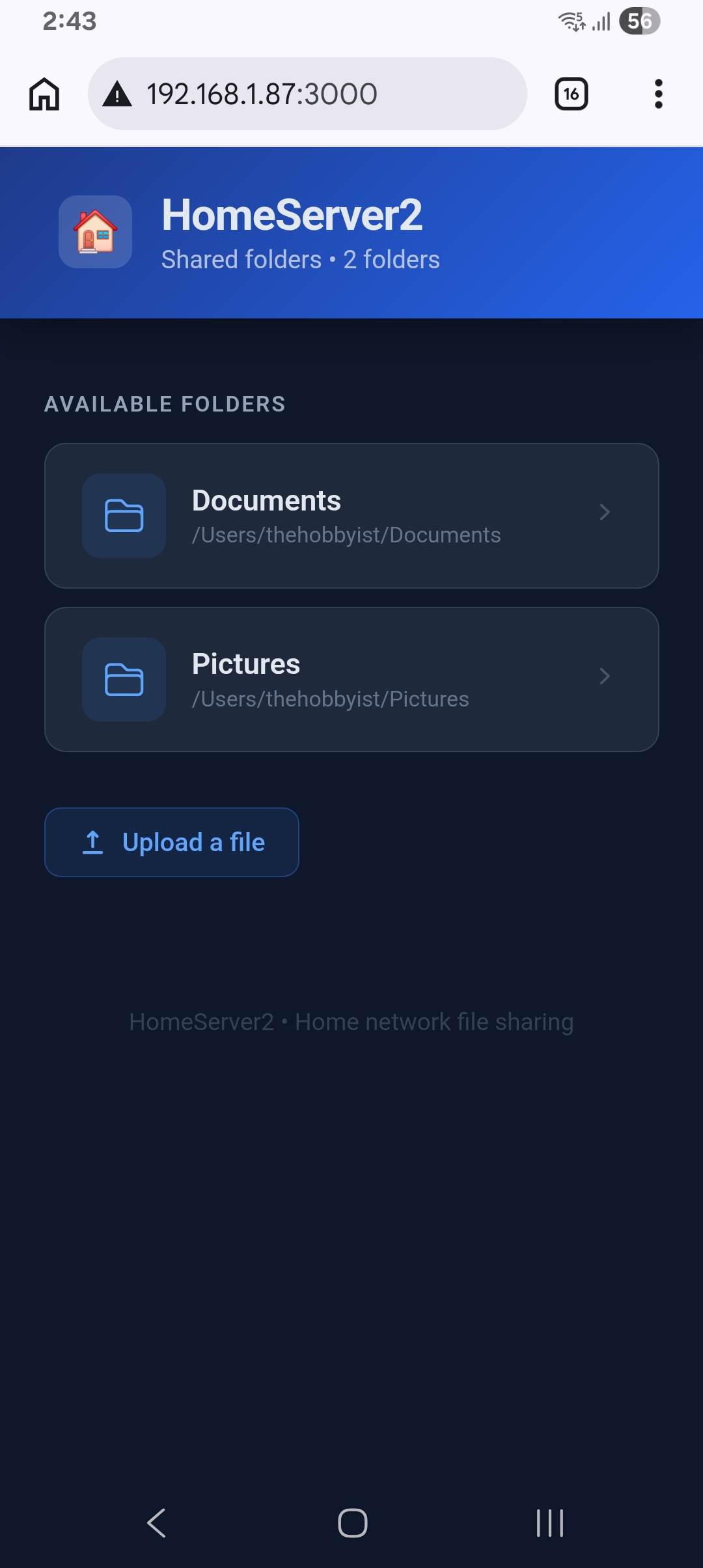
PC files browsed on a phone over WiFi using HomeServer2

From zero to browsing PC files on your phone — in 3 steps.

No network configuration. No router settings. No app store visit on your phone. Just three steps and you're done.

1
Step one

Install HomeServer2 and choose a folder to share

Download and run the free Windows installer — it takes less than a minute. Open HomeServer2, click Add Folder, and pick the folder you want to access from your phone. You can share your Documents folder, a Movies folder, your Desktop — or any combination. Drag and drop from Windows Explorer works too.

2
Step two

Start the server — and scan the QR code with your phone

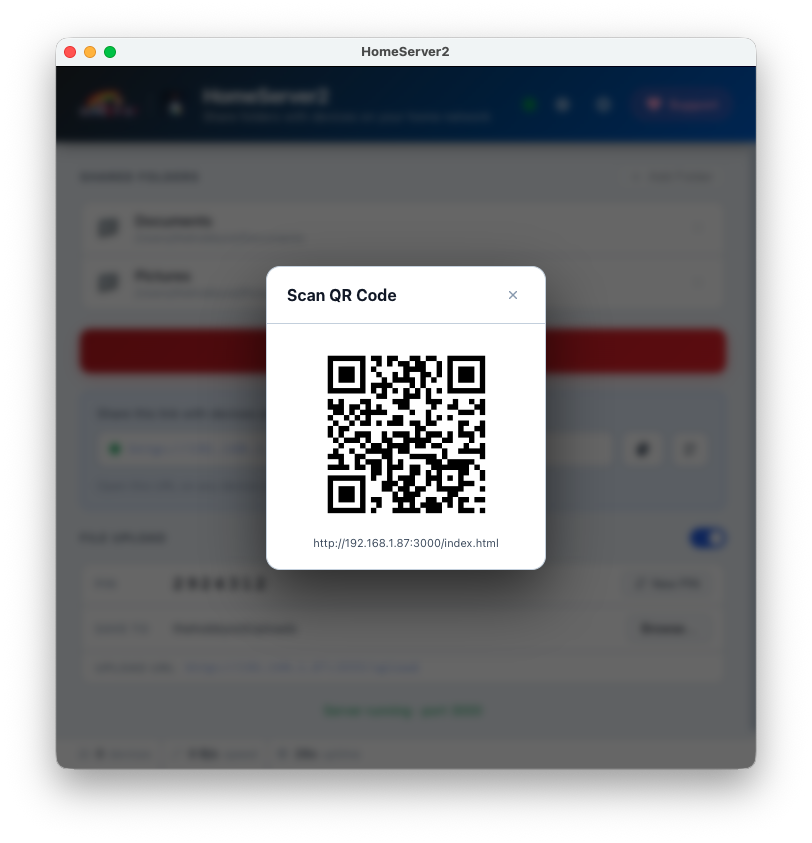
Click Start Server. HomeServer2 detects your PC's local IP address automatically and displays a URL — plus a scannable QR code right in the app window. Point your phone's camera at the QR code (or use the camera app on Android and iPhone) and tap the link that appears. No typing required.

HomeServer2 showing QR code after starting the server
3
Step three

Browse and download any file — right in your phone's browser

Your phone's browser opens to a clean file listing page showing all your shared folders. Tap any folder to browse inside it. Tap a file to download it directly to your phone — no app needed, no special software, no account to create. It works exactly like browsing a website. The file listing looks great on both Android and iPhone browsers.

Browsing PC files on phone browser via HomeServer2

The simplest way to get files from PC to phone.

No cloud upload fees. No cable hunting. No pairing apps. Just your home WiFi doing exactly what it should.

📱

Works on Android and iPhone

Because HomeServer2 serves a standard web page, it works on every mobile browser — Chrome on Android, Safari on iPhone and iPad, Firefox, Samsung Internet, and more. No platform-specific app to download. If your phone has a browser, it will work.

Universal
🚫

No app needed on your phone

Most file-transfer tools require an app installed on both sides. HomeServer2 only needs to be installed on your Windows PC. Your phone uses its built-in browser — nothing to install, nothing to update, and it works on any phone regardless of storage.

📷

QR code for instant access

Typing an IP address like 192.168.1.100:3000 on a phone keyboard is error-prone. HomeServer2 generates a QR code you can scan in one second with any phone camera. The URL opens directly in your browser — no typing needed.

🔒

Files stay on your PC — nothing uploaded anywhere

Cloud file-sharing services upload your data to third-party servers. HomeServer2 never touches the internet. Your files are served directly from your PC to your phone over your local WiFi — they stay exactly where they are, under your full control.

100% private

Questions about accessing PC files on your phone.

Does my phone need an app installed to access PC files?

No — not at all. HomeServer2 serves your files as a standard web page, so any browser on your phone works without installing anything. Chrome, Safari, Firefox, Samsung Internet — they all work. Your phone just needs to be on the same WiFi network as your PC.

Does this work on iPhone, or only Android?

It works on both iPhone and Android equally well. Safari on iPhone, Chrome on Android, or any other mobile browser — the file listing page is fully responsive and works on every screen size. There is nothing iOS-specific or Android-specific about it.

Is it safe to browse PC files on my phone this way?

HomeServer2 only works on your local network — the server is not reachable from the internet. Only devices on your home WiFi or LAN can connect. You choose exactly which folders to share, so only share what you intend to. For sending files back to your PC, an optional PIN with rate limiting prevents brute-force guessing. Do not use HomeServer2 on public WiFi networks.

What kinds of files can I access on my phone?

You can browse and download any file type — PDFs, Word documents, images, videos, music, ZIP archives, APKs, and everything else. Whether your phone's browser opens a file directly depends on the file type and your browser settings, but you can always download any file to your phone's storage and open it with the right app. For example, PDFs open inline in most mobile browsers, and photos display directly in the browser tab.

My phone can't connect — what should I check?

There are a few common causes. First, confirm that both your PC and phone are on the same WiFi network — not mobile data. Second, make sure HomeServer2 is running and the server has been started. Third, if a Windows Firewall popup appeared the first time you ran HomeServer2, check that you clicked "Allow access" — if you dismissed it, go to Windows Firewall settings and allow HomeServer2. Fourth, try disabling any VPN on your phone, as VPNs often block connections to devices on the local network.

Your PC files on your phone in 60 seconds.

Download HomeServer2 free for Windows. Install it, share a folder, scan the QR code — and your files are on your phone's browser. No cloud. No cables. No accounts.

Download HomeServer2 — Free

Free forever · Windows 10 & 11 · Works on any phone browser