Free Windows Software · No Cloud · No Configuration

Turn Your Windows PC into a
Home File Server — Free

Stop emailing files to yourself. HomeServer2 is simple home server software that converts any Windows PC into a personal file server — install it once, and every phone, tablet, and laptop on your home network can browse and download your files instantly.

Free forever · No accounts · No cloud · Works offline

HomeServer2 — Home File Server Software for Windows

Your files. Available everywhere at home.

A home file server sounds technical, but the idea is simple: one PC stores your files, and everything else on your WiFi can access them — without any internet connection required.

📱

Access files from anywhere on your home network

Whether you're on the sofa with your phone, in bed with a tablet, or using a laptop in another room — all your files are one browser tap away. No cables, no USB drives, no file-sharing apps to install on every device. Just open a browser and browse.

💾

A central place for your important files

Keep one authoritative copy of your documents, photos, and projects on your main PC, and let every other device read from it. No more hunting for the "latest version" scattered across multiple devices — everything lives in one place, on your terms.

🎬

Share media with the whole family

Put your movie collection, family photos, or music library in a shared folder. Anyone at home can stream or download them from any browser — smart TV, tablet, laptop. No subscription required. No upload limits. No monthly fees. Just your LAN.

Your home file server, running in 4 steps.

No router settings, no port-forwarding, no command line. If you can install an app and click a button, you can run a home file server.

1

Download and Install

Run the free Windows installer. HomeServer2 adds a Start Menu shortcut — ready in under a minute.

2

Choose Your Folders

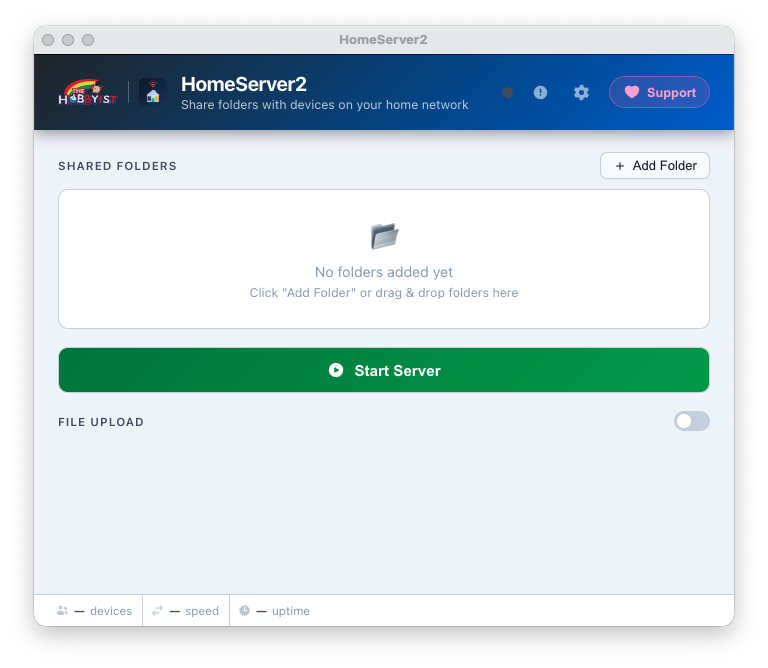
Click Add Folder or drag folders straight from Windows Explorer into the app. Add as many as you like.

3

Start the Server

Click Start Server. HomeServer2 detects your IP address automatically and shows you a ready-to-use URL.

4

Browse from Any Device

Open the URL in any browser on the same WiFi — phone, tablet, or laptop. Browse and download instantly.

Built for simplicity. Designed to stay out of your way.

HomeServer2 gives you exactly what you need for a home file server — nothing more, nothing less.

Zero configuration

There are no network settings to touch, no router rules to create, and no firewall exceptions to figure out manually. HomeServer2 binds to your local network interface automatically and is ready the moment you click Start Server.

Works out of the box
🔔

Runs in the system tray

Close the window and the server keeps running silently in the background. The system tray icon shows whether the server is active and lets you restore the window or shut down cleanly — just like you'd expect from a Windows app.

🔄

Automatic port fallback

If port 3000 is already in use by another application, HomeServer2 automatically tries 3001, 3002, and so on up to 3019. The correct URL is always shown in the app — you never need to change a setting or restart anything.

🎨

8 built-in themes

Choose from Ocean Night, Dracula, Nord, Catppuccin, One Dark, Solarized, GitHub Light, or Ayu Light. The browser file listing page your family sees on their devices is also fully themed — it actually looks good.

Common questions about home file servers.

What is a home file server?

A home file server is a computer on your local network that stores files and makes them available to other devices — phones, tablets, laptops — without using the internet or a cloud service. HomeServer2 turns any ordinary Windows PC into a home file server using software you can install in under a minute.

Do I need special hardware to run a home file server?

No special hardware is needed at all. HomeServer2 runs on any Windows 10 or later PC or laptop — the kind you already own. You do not need a dedicated server machine, a NAS device, or any extra hardware purchases. Your existing PC is more than capable.

Does HomeServer2 keep running in the background?

Yes. Closing the HomeServer2 window sends it to the Windows system tray, where it continues running silently. The file server stays active and your family can keep accessing shared files without the window being open. You can quit it cleanly from the tray icon whenever you're done.

Can everyone in my family access the server at the same time?

Yes — HomeServer2 handles multiple simultaneous connections without any extra setup. Every device on your home WiFi or LAN can browse and download shared files at the same time. The built-in live stats bar shows you how many unique devices are currently connected.

Is HomeServer2 different from a NAS drive?

Yes. A NAS (Network Attached Storage) is dedicated hardware that typically costs $150–$500 or more, plus the cost of drives. HomeServer2 is free software that turns a Windows PC you already own into a functional home file server. It is the ideal choice if you want simple local file sharing without buying extra hardware. The main difference is that your PC needs to be powered on for the server to be available — a dedicated NAS can run 24/7 at lower power. But for most home users, HomeServer2 is all they need.
Your home file server is 30 seconds away.

Download HomeServer2 free for Windows. No cloud. No accounts. No configuration. Just install, pick a folder, and start sharing.

Download HomeServer2 — Free

Free forever · Windows 10 & 11 · No accounts required